Tujuan
Tujuan praktikum ini yaitu mahasiswa membuat menginstall lingkungan flutter development, stateless dan statefull widget dan basic widgets flutter :
- Mahasiswa mampu menyiapkan lingkungan development flutter seperti install sdk flutter, git, android SDK, IDE, dll
- Mahasiswa mampu membuat stateless dan statefull widget flutter
- Mahasiswa mampu membuat contoh widgets flutter
Langkah-Langkah
Setup Lingkungan Flutter Development
Software-software yang dibutuhkan untuk menjalankan flutter diantaranya:
- Git
- Visual Studio Community, instal Dekstop development with C++
- Android Studio
- Visual Studio Code dan ekstensi Flutter
- SDK Flutter, tambahkan ke PATH system variable
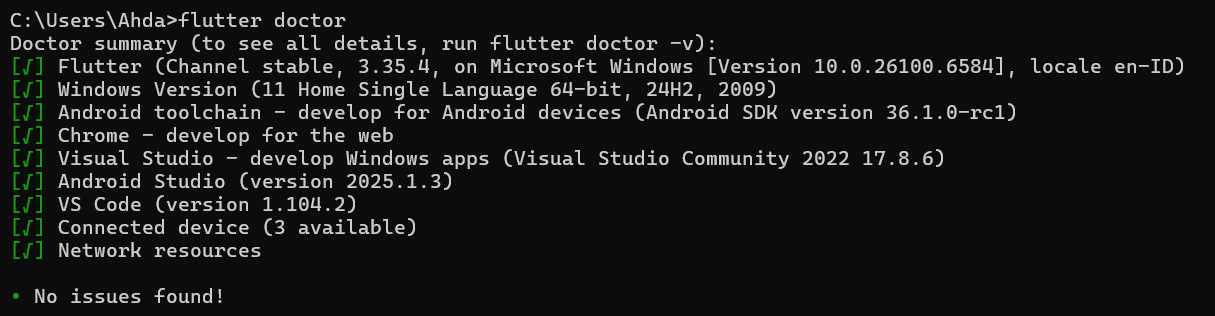
Setelah software yang dibutuhkan lengkap, cek apakah lingkungan flutter development siap untuk digunakan dengan mengetikkan flutter doctor pada terminal.
Buat Project Flutter "hai"
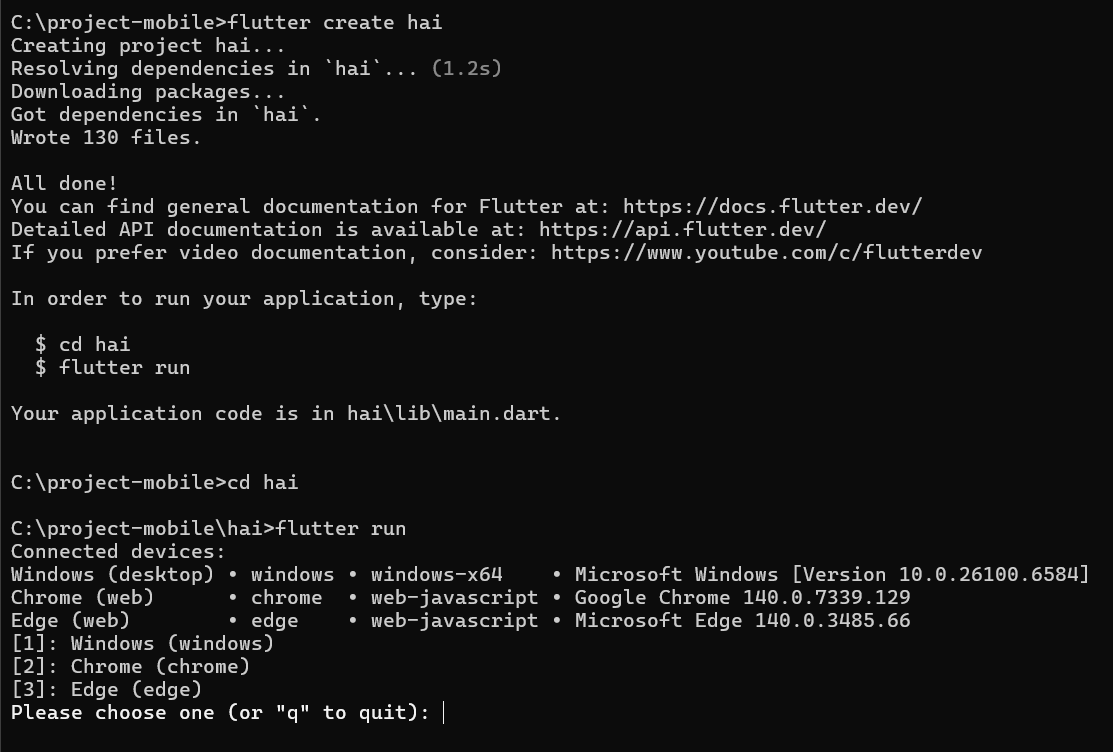
Membuat project flutter bisa melalui terminal dengan mengetik flutter create nama_project pada direktori yang diinginkan. Disini nama project yang akan dibuat bernama "hai". Untuk menjalankannya, ketik cd hai, lalu flutter run
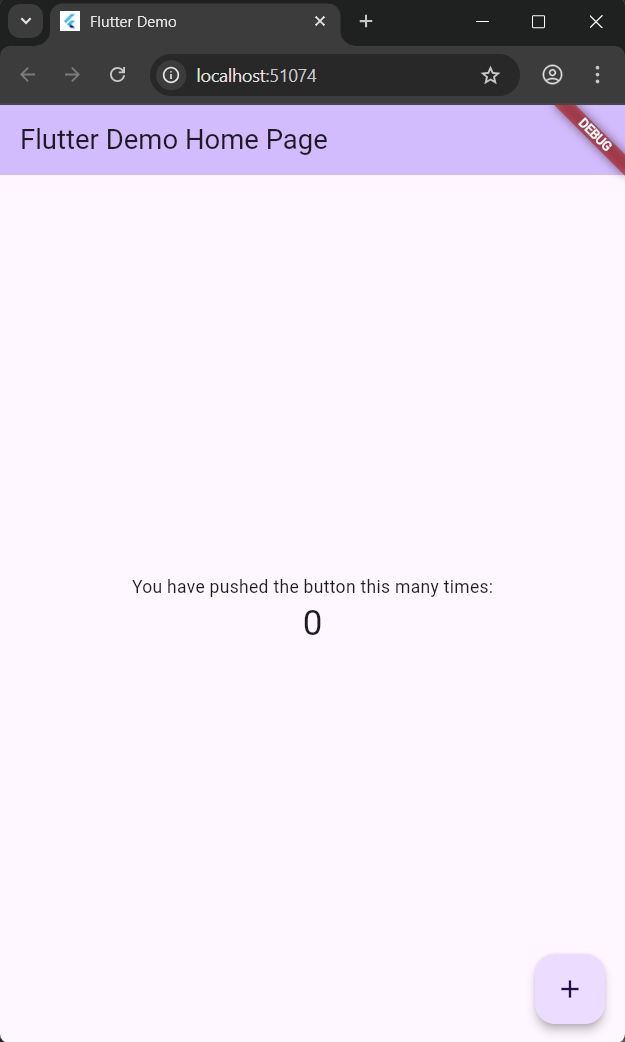
Agar lebih mudah, lanjutkan project di Visual Studio Code. tambahkan folder hai ke workspace.
Struktur Project Flutter
- lib/ berfungsi untuk menyimpan seluruh kode Dart. main.dart adalah class utama yang pertama kali akan di eksekusi
- android/ berisi konfigurasi untuk aplikasi Android pada file build.gradle
- ios/ berisi konfigurasi untuk aplikasi iOS pada file Info.plist
- assets directory dibuat manual untuk menimpan aset aplikasi seperti gambar, font dll
- test/ digunakan untuk menyimpan code testing
- pubspec.yaml berfungsi sebagai file utama konfigurasi proyek flutter
- README.md berisi deskripsi proyek (penjelasan aplikasi, cara install dll)
- .gitignore digunakan untuk pengaturan GIT
Stateless Widget
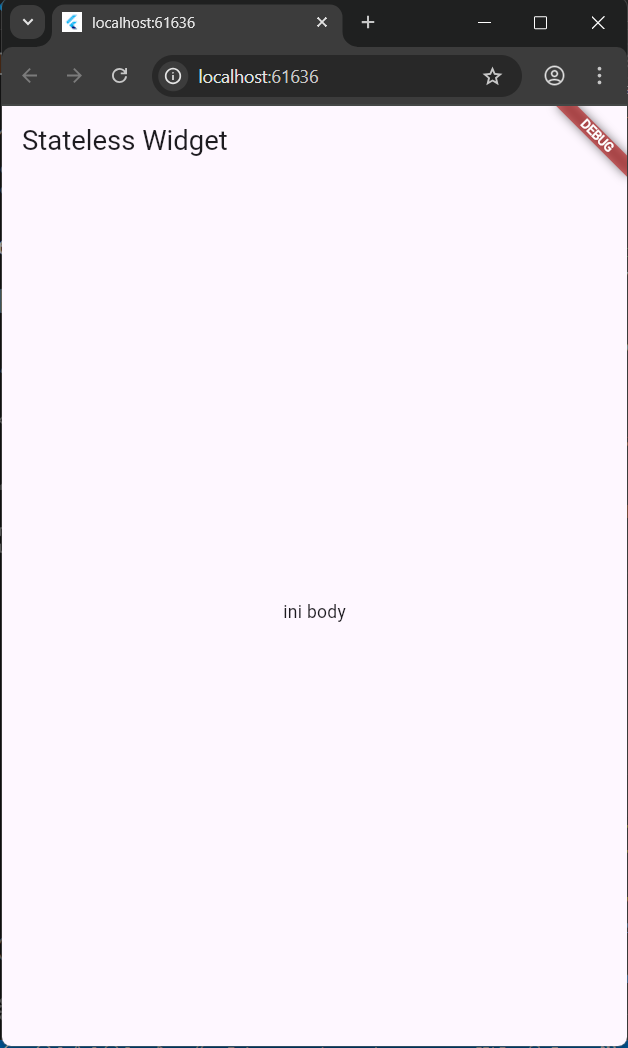
Stateless Widget merupakan widget yang data atau tampilannya tidak mengalami perubahan ketika sebuah state dijalankan, Widget ini bersifat statis atau tetap misalnya teks statis, logo aplikasi dll
import 'package:flutter/material.dart';
void main() {
  runApp(const MyStateless());
}

class MyStateless extends StatelessWidget {
  const MyStateless({super.key});

  @override
  Widget build(BuildContext context) {
    return MaterialApp(
      home: Scaffold(
        appBar: AppBar(
          title: const Text("Stateless Widget"),
        ),
        body: const Center(
          child: Text("ini body"),
        ),
      ),
    );
  }
}
Statefull Widget
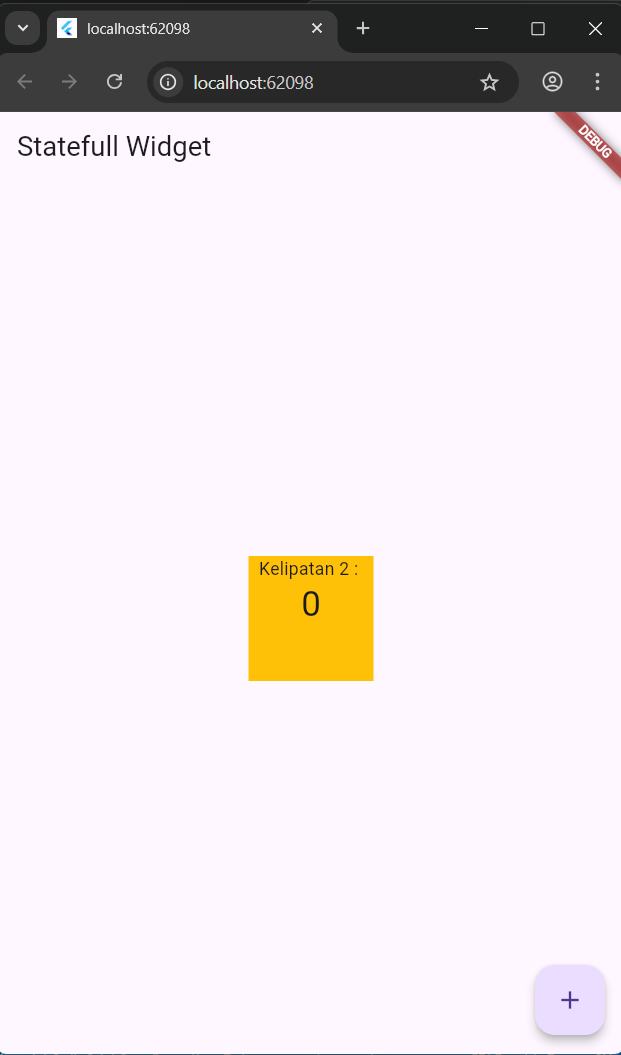
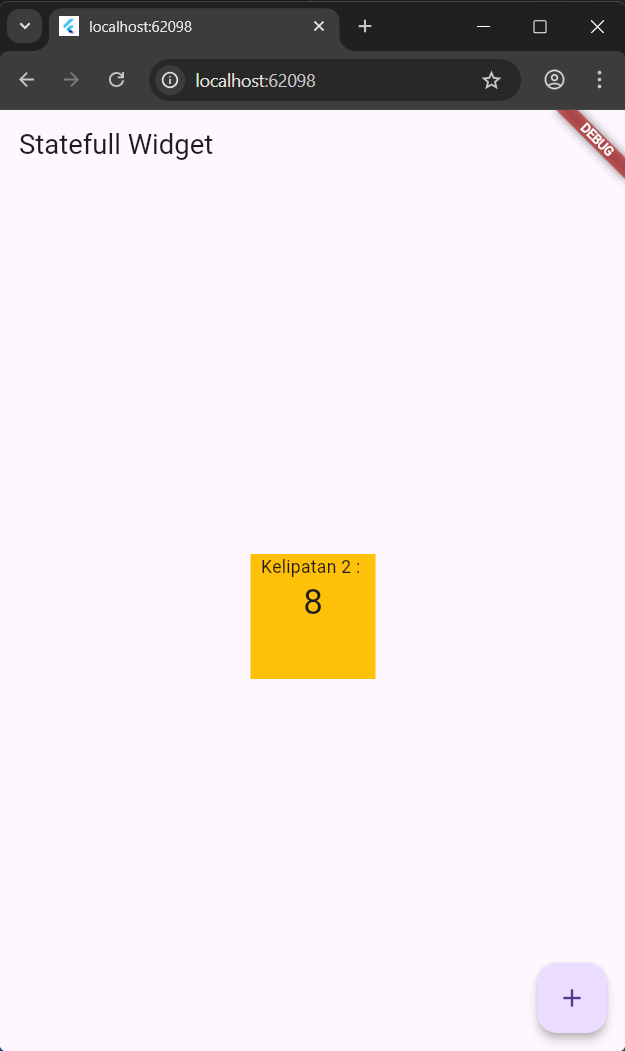
Statefull Widget merupakan widget dinamis yang ketika sebuah state berubah maka tampilan UI juga berubah. contohnya ketika tombol diklik atau ditekan maka tombol berubah warna atau form input nilainya berubah.
- MyStateFulWidget merupakan class widget yang bersifat tetap (immutable) dan tidak memiliki state
- _MyStateFulWidgetState kelas state yang memiliki properti yang dapat berubah (state) dan bertanggung jawab untuk membangun UI
Contoh penggunaan statefull widget:
import 'package:flutter/material.dart';

void main() {
  runApp(const MyStatefull());
}

class MyStatefull extends StatefulWidget {
  const MyStatefull({super.key});

  @override
  State<MyStatefull> createState() => _MyStatefullState();
}

class _MyStatefullState extends State<MyStatefull> {
  int _kelipatan = 0;
  void _kelipatanDua() {
    setState(() {
      _kelipatan += 2;
    });
  }

  @override
  Widget build(BuildContext context) {
    return MaterialApp(
      home: Scaffold(
        appBar: AppBar(
          title: const Text("Statefull Widget"),
        ),
        body: Center(
          child: Container(
            width: 100,
            height: 100,
            color: Colors.amber,
            child: Column(
              children: [
                const Text("Kelipatan 2 : "),
                Text(
                  '$_kelipatan',
                  style: Theme.of(context).textTheme.headlineMedium,
                )
              ],
            ),
          ),
        ),
        floatingActionButton: FloatingActionButton(
          onPressed: _kelipatanDua,
          tooltip: "Kelipatan 2",
          child: const Icon(Icons.add),
        ),
      ),
    );
  }
}
Basic Widgets
- Text
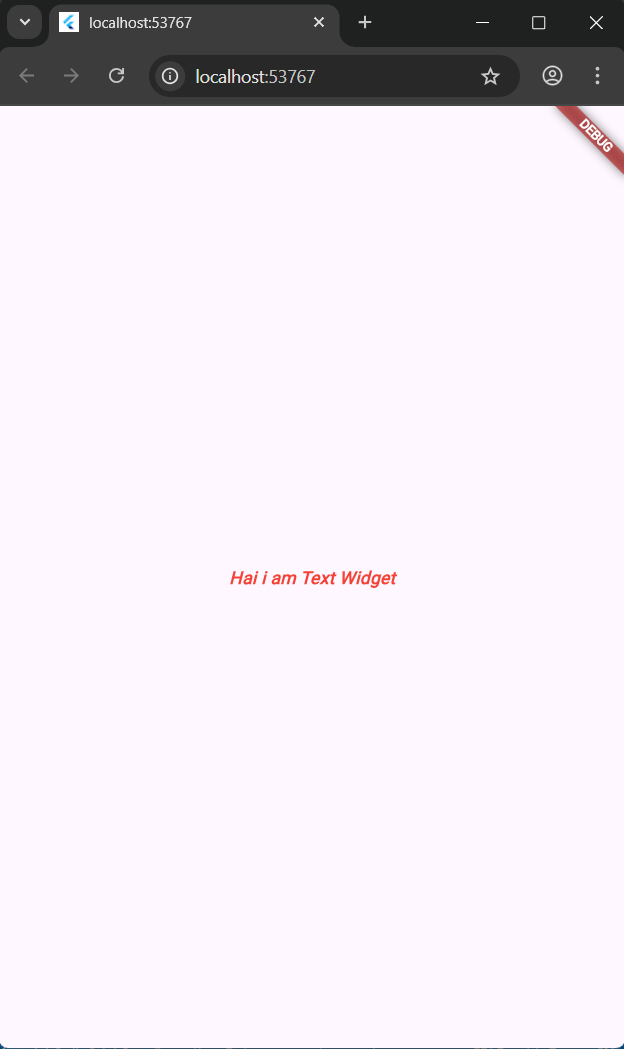
Text merupakan widget dasar yang digunakan untuk menampikan teks pada layer
return Text(
  "Hai i am Text Widget",
  style: TextStyle(
    fontSize: 14.0,
    color: Colors.red,
    fontWeight: FontWeight.bold,
    fontStyle: FontStyle.italic),
  textAlign: TextAlign.center,
  );
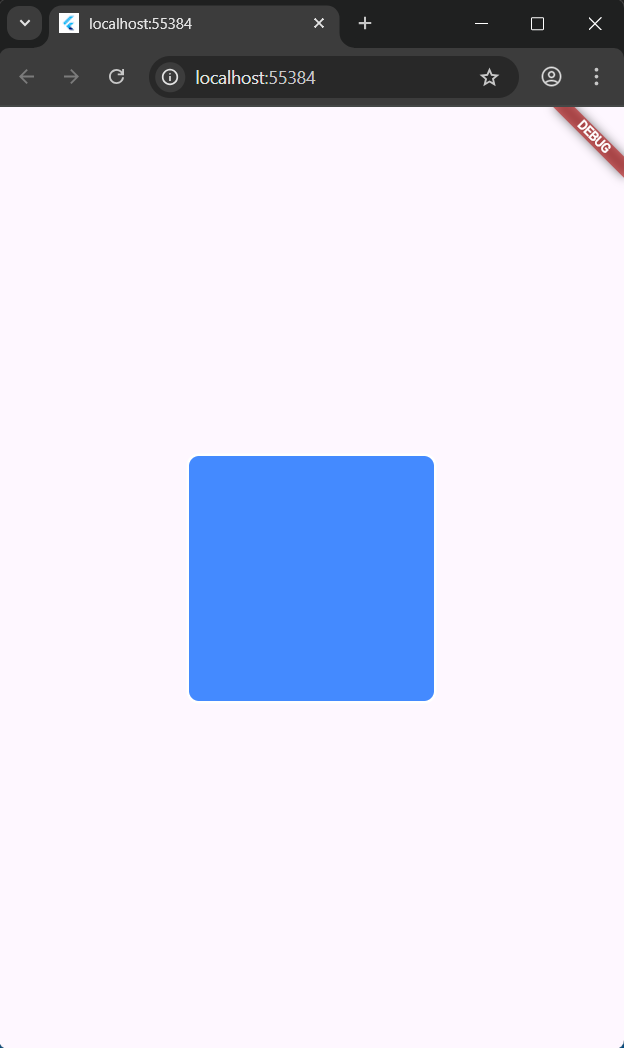
Container merupakan widget yang berfungsi sebagai KOTAK yang dapat menampung satu widget child dan menyediakan berbagai properti untuk dekorasi, mengatur posisi dan mengatur ukuran widget.
return Container(
  width: 200,
  height: 200,
  margin: const EdgeInsets.all(20),
  padding: const EdgeInsets.all(20),
  decoration: BoxDecoration(
    color: Colors.blueAccent,
    border: Border.all(color: Colors.white, width: 2),
    borderRadius: BorderRadius.circular(10)),
  );
ElevatedButton merupakan widget yang mewakili tombol dan memiliki shadow
return ElevatedButton(
  onPressed: () {
    print("tombol ditekan");
  },
  style: ElevatedButton.styleFrom(
    backgroundColor: Colors.green,
    foregroundColor: Colors.white,
    padding: const EdgeInsets.all(20),
    shape: RoundedRectangleBorder(
      borderRadius: BorderRadius.circular(16))),
  child: const Text("Elevated Button"));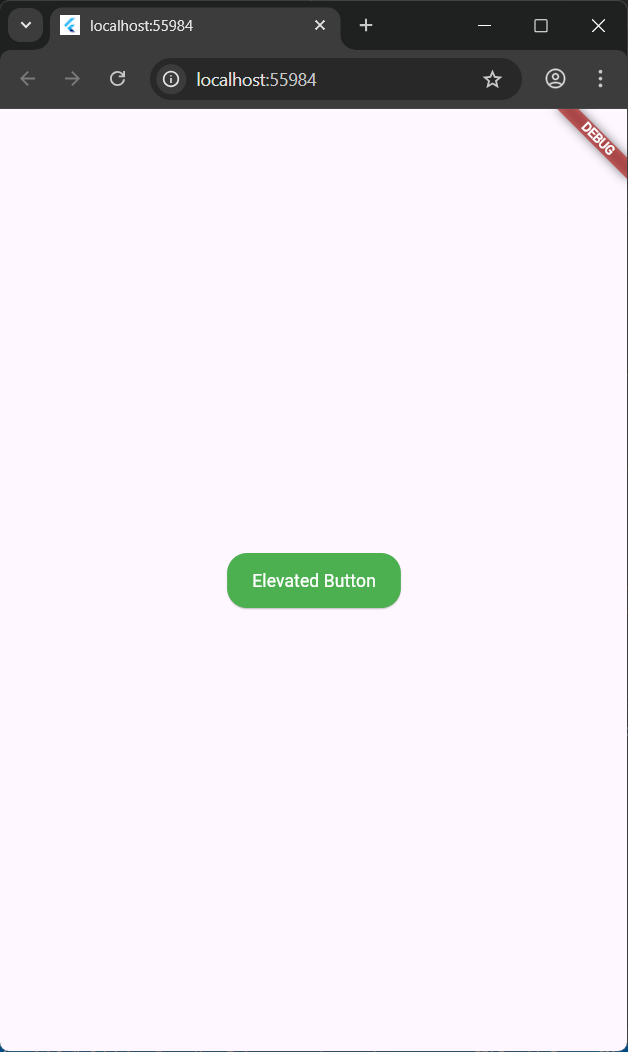
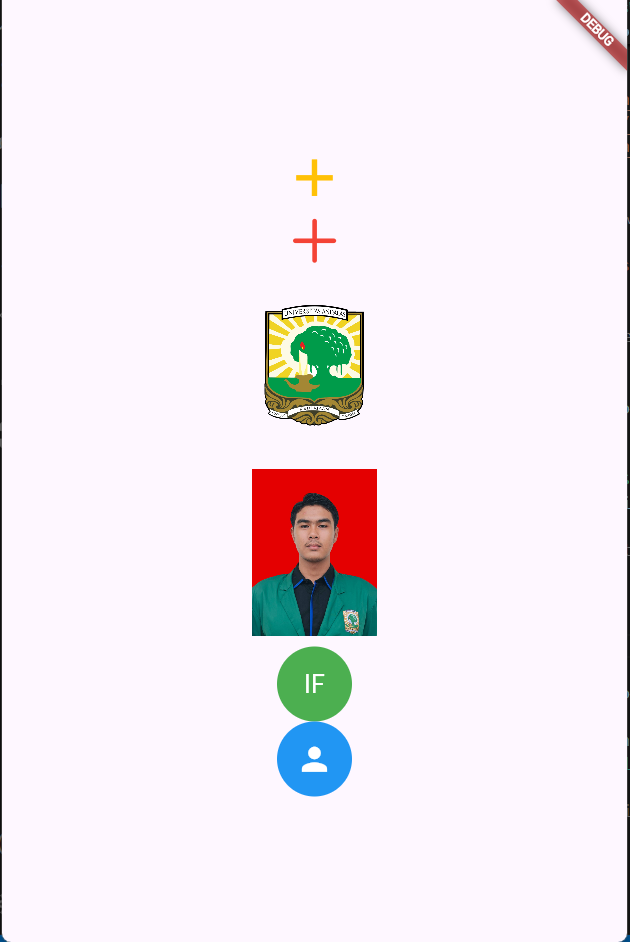
Icon merupakan widget yang digunakan untuk menampilkan icon, Flutter telah menyediakan set icon seperti Material Icons dari Google atau Cupertino Icons dari Apple
Image merupakan widget dasar yang digunakan untuk menampikan gambar dari berbagai sumber seperti asset, network, memory (byte data), file system.
- Buat folder di dalam proyek misalnya assets/images.
- Masukkan gambar (misalnya, foto.jpg) ke dalam folder tersebut.
- Daftarkan di pubspec.yaml dengan menambakan
assets: - assets/images/
CircleAvatar adalah widget yang sering digunakan untuk menampilkan gambar profil pengguna atau inisialnya dalam bentuk lingkaran.
import 'package:flutter/material.dart';
import 'package:flutter/cupertino.dart';

void main() {
  runApp(const MyIcon());
}

class MyIcon extends StatelessWidget {
  const MyIcon({super.key});

  @override
  Widget build(BuildContext context) {
    return MaterialApp(
      home: Scaffold(
        body: Center(
          child: Column(
            mainAxisAlignment: MainAxisAlignment.center,
            children: [
              Icon(
                Icons.add,
                color: Colors.amber,
                size: 50.0,
              ),
              Icon(
                CupertinoIcons.add,
                color: Colors.red,
                size: 50.0,
              ),
              Image.network(
                "https://upload.wikimedia.org/wikipedia/commons/thumb/0/01/Logo_Unand.svg/600px-Logo_Unand.svg.png",
                width: 100,
                height: 150,
              ),
              Image.asset(
                'assets/images/foto.jpg',
                width: 100,
                height: 150,
              ),
              CircleAvatar(
                radius: 30,
                backgroundColor: Colors.green,
                child: Text(
                  "IF",
                  style: TextStyle(fontSize: 20, color: Colors.white),
                ),
              ),
              SizedBox(
                width: 10,
              ),
              CircleAvatar(
                radius: 30,
                backgroundColor: Colors.blue,
                child: Icon(
                  Icons.person,
                  color: Colors.white,
                  size: 30,
              ))
            ],
          ),
        ),
      ),
    );
  }
}
Tugas
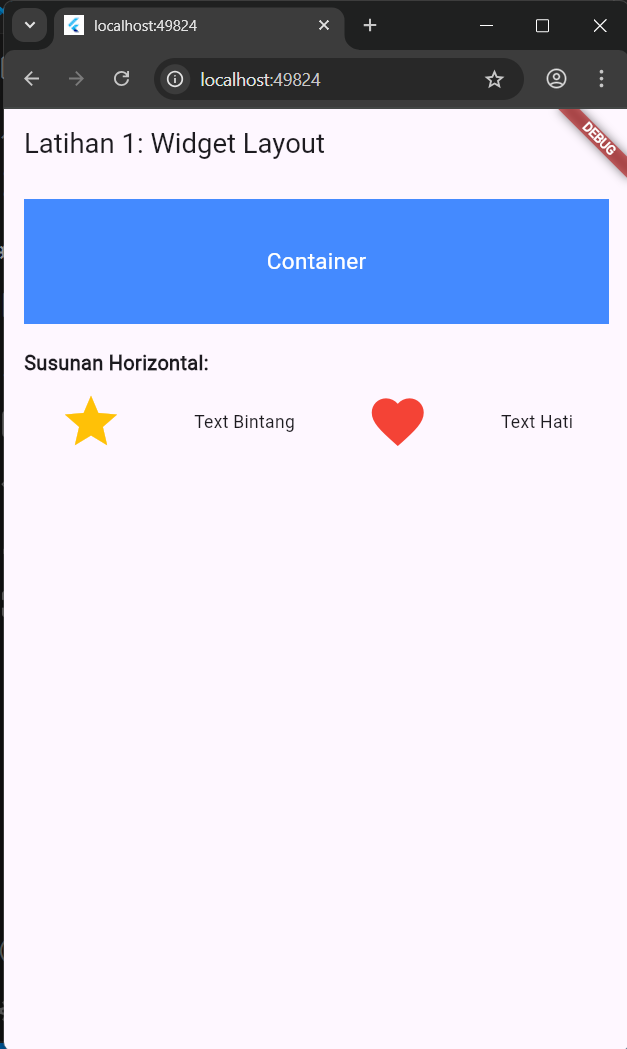
1. Buatlah tampilan widget secara vertical dan horizontal dengan menggunakan minimal 3 buah basic widget dalam 1 tampilan
import 'package:flutter/material.dart';

void main() {
  runApp(const MyApp());
}

class MyApp extends StatelessWidget {
  const MyApp({super.key});

  @override
  Widget build(BuildContext context) {
    return MaterialApp(
      home: Scaffold(
        appBar: AppBar(
          title: const Text('Latihan 1: Widget Layout'),
        ),
        body: Padding(
          padding: const EdgeInsets.all(16.0),
          child: Column(
            crossAxisAlignment: CrossAxisAlignment.start,
            children: [
              Container(
                width: double.infinity,
                height: 100,
                color: Colors.blueAccent,
                child: const Center(
                  child: Text(
                    'Container',
                    style: TextStyle(color: Colors.white, fontSize: 18),
                  ),
                ),
              ),
              const SizedBox(height: 20),
              const Text(
                'Susunan Horizontal:',
                style: TextStyle(fontSize: 16, fontWeight: FontWeight.bold),
              ),
              const SizedBox(height: 10),
              Row(
                mainAxisAlignment: MainAxisAlignment.spaceAround,
                children: [
                  Icon(
                    Icons.star,
                    color: Colors.amber,
                    size: 50.0,
                  ),
                  Text('Text Bintang'),
                  Icon(
                    Icons.favorite,
                    color: Colors.red,
                    size: 50.0,
                  ),
                  Text('Text Hati'),
                ],
              ),
            ],
          ),
        ),
      ),
    );
  }
}
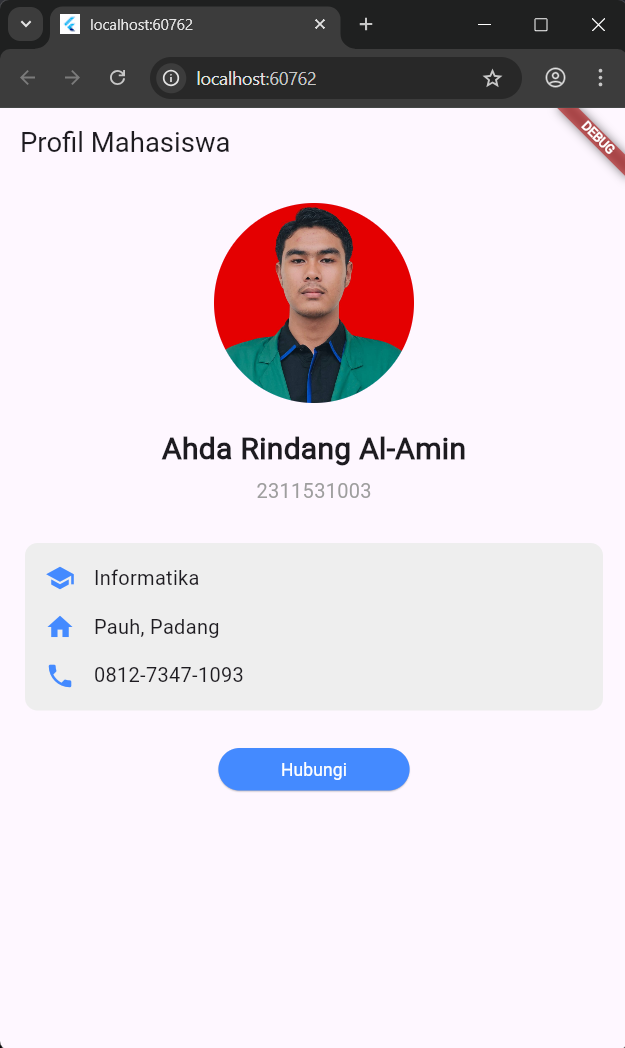
2. Buatlah tampilan yang berisi informasi profile kalian (foto, nama, nim, Alamat, nomor handphone, jurusan) dengan mengimplementasikan seluruh basic widget yang ada pada modul praktikum ini.
import 'package:flutter/material.dart';

void main() {
  runApp(const MyApp());
}

class MyApp extends StatelessWidget {
  const MyApp({super.key});

  @override
  Widget build(BuildContext context) {
    return MaterialApp(
      home: Scaffold(
        appBar: AppBar(
          title: const Text('Profil Mahasiswa'),
        ),
        body: SingleChildScrollView(
          child: Center(
            child: Padding(
              padding: const EdgeInsets.all(20.0),
              child: Column(
                mainAxisAlignment: MainAxisAlignment.center,
                crossAxisAlignment: CrossAxisAlignment.center,
                children: [
                  const CircleAvatar(
                    radius: 80,
                    backgroundImage: AssetImage(
                      'assets/images/foto.jpg',
                    ),
                  ),
                  const SizedBox(height: 20),


                  const Text(
                    'Ahda Rindang Al-Amin',
                    style: TextStyle(
                      fontSize: 24.0,
                      fontWeight: FontWeight.bold,
                    ),
                  ),
                  const SizedBox(height: 5),
                  const Text(
                    '2311531003',
                    style: TextStyle(
                      fontSize: 16.0,
                      color: Colors.grey,
                    ),
                  ),
                  const SizedBox(height: 30),

                  Container(
                    padding: const EdgeInsets.all(16.0),
                    decoration: BoxDecoration(
                      color: Colors.grey[200],
                      borderRadius: BorderRadius.circular(10),
                    ),
                    child: const Column(
                      children: [
                        InfoRow(
                          icon: Icons.school,
                          text: 'Informatika',
                        ),
                        SizedBox(height: 15),
                        InfoRow(
                          icon: Icons.home,
                          text: 'Pauh, Padang',
                        ),
                        SizedBox(height: 15),
                        InfoRow(
                          icon: Icons.phone,
                          text: '0812-7347-1093',
                        ),
                      ],
                    ),
                  ),
                  const SizedBox(height: 30),


                  ElevatedButton(
                    onPressed: () {
                      print("Tombol 'Hubungi' ditekan!");
                    },
                    style: ElevatedButton.styleFrom(
                      backgroundColor: Colors.blueAccent,
                      foregroundColor: Colors.white,
                      padding: const EdgeInsets.symmetric(horizontal: 50, vertical: 15),
                    ),
                    child: const Text('Hubungi'),
                  ),
                ],
              ),
            ),
          ),
        ),
      ),
    );
  }
}

class InfoRow extends StatelessWidget {
  final IconData icon;
  final String text;

  const InfoRow({
    super.key,
    required this.icon,
    required this.text,
  });

  @override
  Widget build(BuildContext context) {
    return Row(
      children: [
        Icon(icon, color: Colors.blueAccent),
        const SizedBox(width: 15),
        Text(text, style: const TextStyle(fontSize: 16)),
      ],
    );
  }
}